How to run your own Hermes agent on a free Oracle Cloud server (step by step)
Last checked: 2 November 2026. Oracle, Tailscale and Hermes all change their screens and commands now and then. If something below looks different, trust the screen and the official docs linked at the end.
You've seen people chatting with their own AI agent on Telegram, from a phone, at 2am, running on a server they pay nothing for. And you've probably thought: how hard can it be?
Harder than it looks, honestly. Not because any single step is difficult, but because there are about six different accounts and dashboards involved, and each one has its own way of locking you out. I've set this up on my own server, and the part that eats your time is never the commands. It's the accesses: who is allowed to reach what, and how.
So this guide covers both. The commands, and the accesses.
TL;DR: You'll create a free Oracle Cloud account, launch an Ampere Arm server, hide it behind Tailscale so nobody on the internet can reach it, install Hermes Agent and the Hermes Web UI on it, connect models through Kilo Code or Ollama, and add Claude Code if you want it. Total cost: nothing, as long as you stay inside Oracle's free limits (read step 2 before you pick a size). Total time: about two hours, plus however long Oracle takes to approve you.
Disclaimer: I wrote this with AI assistance. The commands were checked against the official docs and READMEs linked at the bottom, and the Web UI and gateway setup comes from my own server, but these tools change quickly, so read each command before you run it.
What you'll end up with
Your laptop / phone
      |
  Tailscale (private network, only your devices)
      |
Oracle Cloud server (Ubuntu 24.04, Arm, Always Free)
  - Hermes Agent + gateway (talks to Telegram, Discord, etc.)
  - Hermes Web UI (chat from a browser, port 8787)
  - Claude Code (optional)
The important design choice: the server has no open ports to the public internet once you're done. Everything goes through Tailscale. That's what keeps a free server with an AI agent on it from becoming someone else's playground.
Before you start
Oracle is the fussy one. Get these ready first:
- A physical credit card from a regular bank. Prepaid, virtual and some debit cards are often rejected. Oracle verifies the card with a small temporary hold. Free tier means you aren't charged, but they still want a real card.
- A phone for verification and an authenticator app.
- A normal home or office connection. No VPN, no privacy extensions, same browser and device all the way through. Oracle's fraud checks are strict and a VPN is the most common reason for a rejection.
- Your billing address exactly as your bank has it. Same spelling, same format.
- About two hours, not counting Oracle's approval time.
Two things you'll also need accounts for: Tailscale (free) and a model provider for the agent (more on that in step 7).
Step 1: Create the Oracle Cloud account
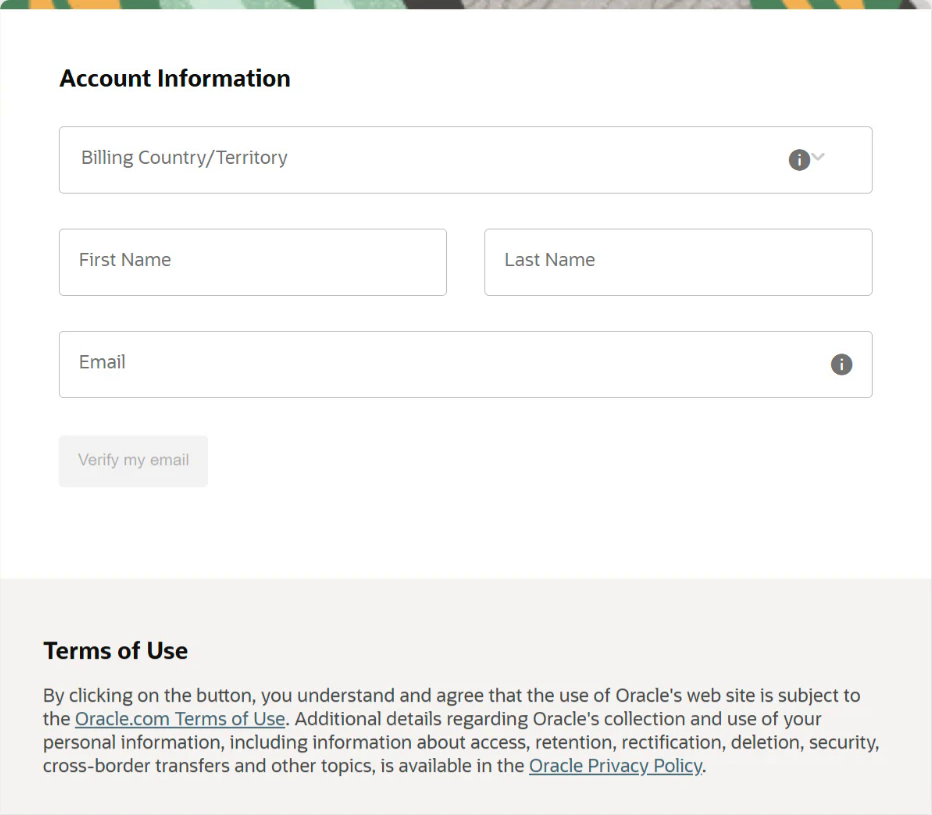
- Go to the Oracle Cloud Free Tier signup page and enter your details.
- Choose your home region carefully. You can't change it later. Pick one close to you. Capacity for free Arm servers varies a lot by region, which matters in step 3.
- Add your card and finish the verification.
- Oracle then creates your account. This can take a few minutes or a few hours. If sign-in says the account isn't ready, wait. Don't sign up again, that's how people get flagged.
- On first sign-in Oracle asks you to set up an authenticator app. Install one before you start and keep your phone nearby.
If Oracle rejects the account, don't keep retrying. Try again later, or use their sales chat and ask for a manual review. I can't promise that works.
Recommended: upgrade to Pay As You Go and set a budget alert
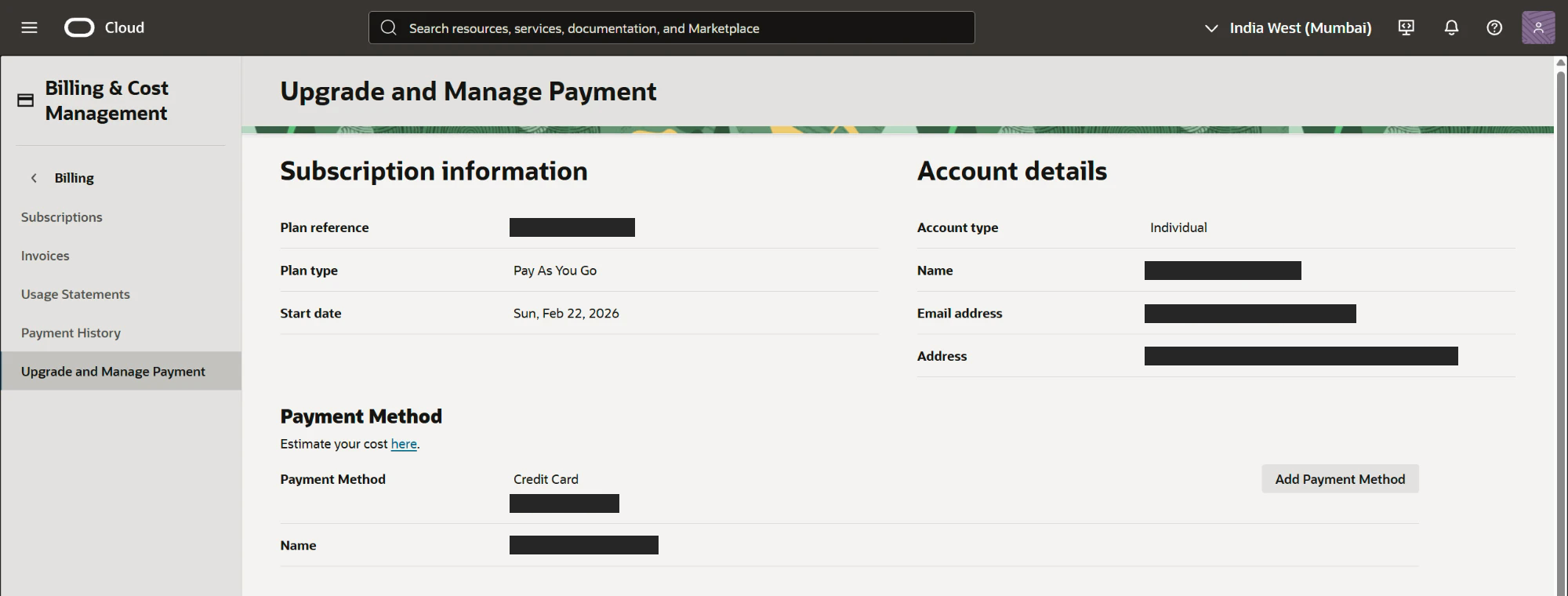
This sounds backwards, but I think it's the better choice. Oracle can reclaim idle Always Free servers (more on that at the end). Many people report that upgrading to Pay As You Go helps, though Oracle's docs don't promise it, so treat it as a possible help and not a guarantee. You still pay nothing as long as you only use Always Free resources.
- In the console, open Billing and upgrade the account.
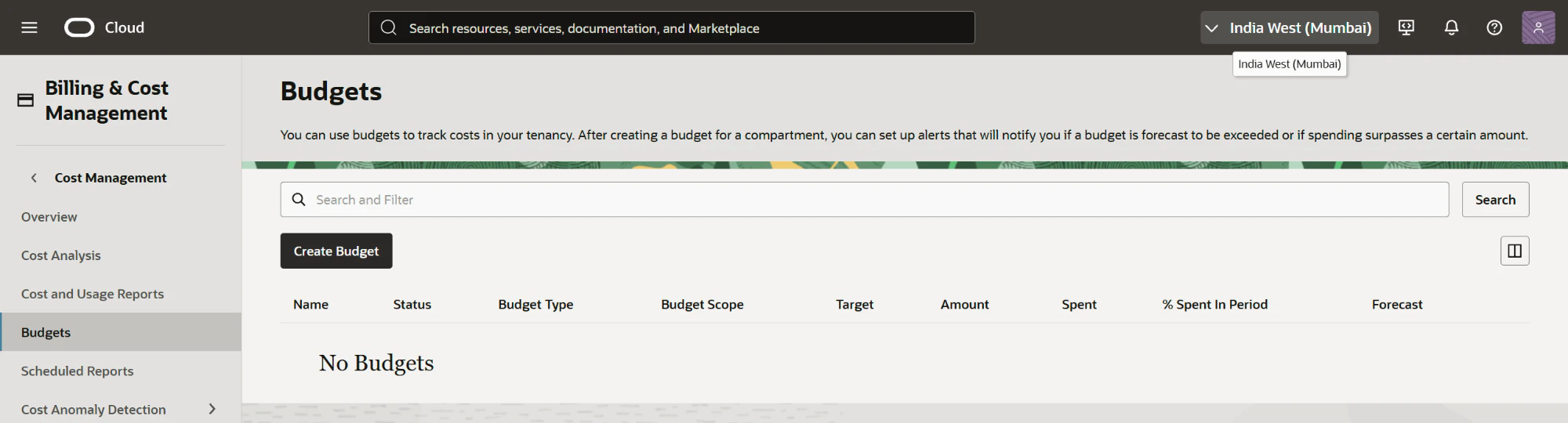
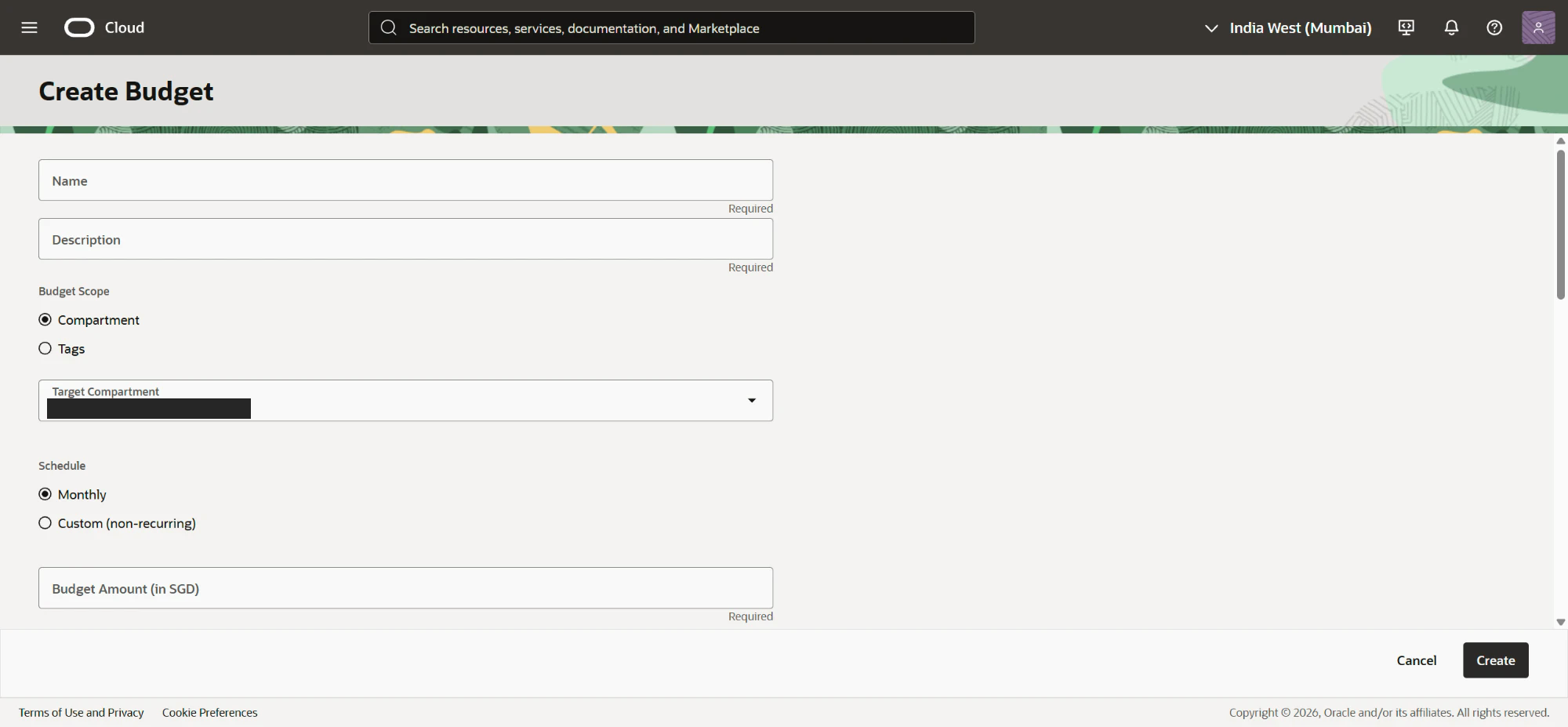
- Create a budget with a tiny limit (say, $1) and an alert to your email. If anything ever starts costing money, you'll hear about it the same day.
Step 2: Know your free limits
Oracle's own pages disagree with each other here, so check the Always Free resources page in your own console. Per Oracle's Always Free docs, the numbers right now are:
| Resource | Free allowance |
|---|---|
| Arm servers (VM.Standard.A1.Flex) | 2 OCPUs and 12 GB of memory in total, split however you like |
| AMD micro servers | Up to two, with 1 GB of memory each |
| Disk (boot and block volumes together) | 200 GB total, plus five volume backups |
This guide uses 4 OCPUs and 12 GB of memory. Read this before you copy that, because it can cost money:
- Oracle's docs count 2 OCPUs as free (1,500 OCPU hours a month). Four OCPUs running all month is about 2,900 hours.
- On a Pay As You Go account, Oracle charges for usage above the free limits. On a free account, Oracle may simply refuse the size.
- Oracle's own pages have disagreed on this allowance, so don't take my word or anyone else's. Check your console, and look at Billing > Cost analysis a day after you launch.
If you want a guaranteed $0, use 2 OCPUs and 12 GB. The rest of this guide works the same. For scale, my own server runs on 1 OCPU and 6 GB and uses about 2.4 GB of memory, so Hermes doesn't need much. Smaller sizes also find capacity more easily, and you can resize later.
Step 3: Launch the server
- In the console, go to Compute > Instances > Create instance.
- Image: Canonical Ubuntu 24.04 for Arm (aarch64).
- Shape: change it to VM.Standard.A1.Flex (Ampere). Set 4 OCPUs, 12 GB, or 2 OCPUs and 12 GB if you want to stay inside the documented free limit (see step 2).
- Networking: let Oracle create a new virtual cloud network with a public subnet, and keep Assign a public IPv4 address ticked. You need the public address for the very first login only.
- SSH keys: choose Generate a key pair for me and download both files. Keep the private key safe. It's the only way in until Tailscale is set up.
- Boot volume: the default (about 50 GB) is fine.
- Click Create.
If you see "Out of capacity"
This is the most common wall. Free Arm capacity runs out in popular regions. Things that work:
- Try a smaller shape (2 OCPUs and 12 GB, then 1 OCPU and 6 GB).
- Try another availability domain if your region has more than one.
- Wait and try again. Sometimes it's minutes, sometimes it's days.
- Don't hammer the button with a script. Oracle rate-limits you, and aggressive retries can get you blocked.
Step 4: First login and base setup
When the instance shows Running, copy its public IP. On your laptop:
chmod 600 ~/Downloads/YOUR_KEY_FILE.key
ssh -i ~/Downloads/YOUR_KEY_FILE.key ubuntu@YOUR_PUBLIC_IP
Replace YOUR_KEY_FILE.key with the exact name of the private key you downloaded. On Windows, run the ssh line in PowerShell with the full path to the file, and skip chmod. The default user on Oracle's Ubuntu image is ubuntu. Use it. Don't create a separate user, you'll just trip over permissions later.
Update everything and turn on automatic security patches:
sudo apt update && sudo apt -y upgrade
sudo apt -y install unattended-upgrades
sudo dpkg-reconfigure -plow unattended-upgrades
Leave automatic reboots off. A surprise reboot in the middle of a conversation with your agent is annoying, and you'll handle restarts yourself.
Step 5: Tailscale (the access layer)
This is the step that makes everything else safe. Tailscale builds a private network between your devices. The server joins it, and from then on you reach it by a private address that nobody else on the internet can touch.
Do this on your laptop first:
- Create a free account at tailscale.com.
- Install the Tailscale app on your laptop and sign in.
- In the Tailscale admin console, open DNS and turn on MagicDNS, so you can reach the server by name instead of by address.
Then on the server:
curl -fsSL https://tailscale.com/install.sh | sh
sudo tailscale up --ssh --hostname=hermes-box
The --ssh flag turns on Tailscale SSH, which lets you log in without managing keys, using your Tailscale identity. The command prints a login link. Open it in your browser and approve the machine.
Now two things you must do in the admin console, or this will bite you months later:
- Disable key expiry for this machine (Machines page, the three dots next to it). Otherwise its key expires after 180 days by default and the server silently drops off your network.
- Check that your access rules allow SSH to this machine. The default policy lets you reach your own devices. If you've edited yours, make sure your user can reach it.
Test it before moving on. From your laptop, with Tailscale running:
ssh ubuntu@hermes-box
The default policy runs in "check" mode, so the first connection prints a link and waits for you to approve it in your browser. That's normal, and it asks again about every 12 hours. Once approved, you're logged in with no key file, and Tailscale SSH works. If you skip this test and close the public port in the next step, you can lock yourself out.
Step 6: Close the public door
Only after the test above works.
- In the Oracle console, open your Virtual Cloud Network > Security Lists (or the network security group on the instance).
- Delete the rule that allows port 22 from anywhere (or any source).
Tailscale makes outbound connections, so the server doesn't need an inbound SSH rule. The default ICMP rules can stay.
Now prove the door is shut. From your laptop, using the public IP:
nc -vz -w5 YOUR_PUBLIC_IP 22
On Windows, use Test-NetConnection YOUR_PUBLIC_IP -Port 22 in PowerShell. It should time out or fail. Then check ssh ubuntu@hermes-box still works.
Two more things to know. Oracle's Ubuntu images ship with their own restrictive firewall rules in /etc/iptables/rules.v4. Tailscale adds its own rule that accepts traffic on the tailscale0 interface, so you normally don't need to touch it. And if Tailscale ever breaks, add a temporary SSH rule for your own IP (not "anywhere") in the Oracle console, log in with the key from step 3, fix it, and remove the rule. That's why you keep the key.
Step 7: Install Hermes Agent
SSH in over Tailscale (ssh ubuntu@hermes-box) and run the official installer from the Hermes Agent repo:
sudo apt -y install git curl
curl -fsSL https://hermes-agent.nousresearch.com/install.sh | bash -s -- --skip-browser --skip-computer-use
source ~/.bashrc
By default the installer also adds Chromium and a computer-use driver. The two --skip flags leave them out, because this setup doesn't use them and a headless browser can eat a couple of GB of memory on its own. If you want the browser later, hermes pm install chromium adds it back.
The source lands in ~/.hermes/hermes-agent, your data in ~/.hermes, and the hermes command in ~/.local/bin. Then:
hermes setup     # the full setup wizard
hermes model     # choose your provider and model
hermes doctor    # tells you what's wrong, if anything
Run hermes to talk to it in the terminal. If that works, the core install is done. To update later, run hermes update.
Which model, and where does the key go?
You need a model provider. hermes model walks you through the options, including Anthropic and OpenRouter. Hermes needs a model with at least 64,000 tokens of context.
Hermes keeps API keys in ~/.hermes/.env. The wizard normally writes them for you. If you add a key by hand, open the file in an editor so the key stays out of your shell history:
nano ~/.hermes/.env
chmod 600 ~/.hermes/.env
Never put keys in a chat message, a git repo, or a screenshot you share.
If you don't want to pay for a model yet, here are the two routes I'd look at:
| Kilo Code | Ollama | |
|---|---|---|
| What you get | Free hosted models, including NVIDIA Nemotron | Models on your own server, or Ollama's hosted cloud models |
| Cost | Free models are free while the promotion lasts | Local is free. Cloud is billed per token |
| Speed on this server | Fast, it runs on their hardware | Local is slow on CPU. Cloud is fast |
| Privacy | Your prompts go to a third party | Local stays on your server. Cloud goes to Ollama |
Option 1: free NVIDIA models through Kilo Code
Kilo Code runs a gateway with a set of free models, and Hermes has a built-in kilocode provider for it.
- Create a free account at app.kilo.ai and copy your API key from the dashboard.
- Add it to
~/.hermes/.envwith thenanocommand above:
KILOCODE_API_KEY=your-key-here
- See which models are free right now. No login needed:
curl -s https://api.kilo.ai/api/gateway/models | grep -o '"id":"[^"]*:free"'
When I ran that, the list included nvidia/nemotron-3.5-super-vl:free and nvidia/nemotron-3-ultra-550b-a55b:free. The list changes, so go by what it prints for you.
- Point Hermes at one. Run
hermes modeland pick Kilo Code, or set it in~/.hermes/config.yaml:
model:
  provider: "kilocode"
  default: "nvidia/nemotron-3.5-super-vl:free"
Two honest warnings. Kilo itself says free promotions can end, so have a fallback. And a free hosted model is not a private one, so check the model's terms and keep personal data and work secrets out of it until you've read them.
Option 2: Ollama, local or cloud
Local runs the model on your server, with no key and no per-token bill. On CPU-only Ampere it's slow, so stick to small models and treat it as a backup:
curl -fsSL https://ollama.com/install.sh | sh
ollama pull YOUR_MODEL
Pick a small model from the Ollama library. Ollama's default context on a machine like this is 4,096 tokens, and Hermes needs 64,000, so raise it:
sudo systemctl edit ollama.service
# Add these two lines in the editor:
# [Service]
# Environment="OLLAMA_CONTEXT_LENGTH=64000"
sudo systemctl daemon-reload && sudo systemctl restart ollama
If ollama.service doesn't exist on your install, the Ollama Linux guide shows how to add it. A context that size also uses a lot more memory, so run ollama ps and free -h once a model is loaded. Then run hermes model, choose Custom endpoint, enter http://localhost:11434/v1, and skip the API key.
Cloud runs large models on Ollama's hardware. Create a key at ollama.com/settings/keys, run hermes model, pick Ollama Cloud, paste the key and choose a model. Check Ollama's pricing first. When I checked, there was no free cloud allowance: the $0 plan has no monthly fee, but every cloud model is billed per token using credits you buy.
Optional: keep your keys in Bitwarden
By default your keys sit in a plain text file on the server. If you'd rather keep them in one managed place, Hermes supports Bitwarden Secrets Manager. It's a separate product from the Bitwarden password manager, and it has a free tier with limits.
- In the Bitwarden web app, create a project in Secrets Manager and add your keys as secrets. The secret's name becomes the variable name, so use names like
KILOCODE_API_KEY. - Create a machine account, give it Read access to the project, and generate an access token. Copy it right away, because Bitwarden won't show it again.
- On the server, run the wizard. It installs the
bwstool, asks for the token, region and project, and tests a fetch:
hermes secrets bitwarden setup
hermes secrets bitwarden status
hermes secrets bitwarden sync    # dry run, shows what would be applied
Once it works, remove those keys from ~/.hermes/.env. Only the bootstrap token, BWS_ACCESS_TOKEN, stays there.
Know the limits. That token can read every secret in the project, so anyone with access to the server can still get your keys. This makes rotating and managing keys easier, but it doesn't protect them from a compromised server. Bitwarden also never blocks startup: if a fetch fails, Hermes prints a warning and carries on with whatever is in .env. To turn it off, run hermes secrets bitwarden disable.
Optional: talk to it from Telegram or Discord
Hermes has a messaging gateway for Telegram, Discord, Slack, WhatsApp, Signal and email. The good news: it denies everyone by default, so your job is to let yourself in. For Telegram:
- Message @BotFather on Telegram, send
/newbot, and copy the token it gives you. - Get your numeric Telegram user ID (a bot like @userinfobot will tell you).
- Run the setup wizard and give it the token:
hermes gateway setup
- Allow yourself, using either of these:
# Option 1: add this line to ~/.hermes/.env
TELEGRAM_ALLOWED_USERS=YOUR_NUMERIC_ID

# Option 2: message your bot, get a one-time code, and approve it on the server
hermes pairing approve telegram YOUR_CODE
Pairing codes expire after an hour. Don't set GATEWAY_ALLOW_ALL_USERS=true. That hands your server's terminal to anyone who finds the bot.
To keep the gateway running after logout and across reboots, install it as a user service, which is how my server runs it, and turn on lingering:
hermes gateway install
sudo loginctl enable-linger ubuntu
hermes gateway status
The enable-linger line matters. Without it, a user service stops when you log out and doesn't start at boot. Logs are at journalctl --user -u hermes-gateway -f.
The Hermes docs also offer a system service for a VPS (sudo hermes gateway install --system). Pick one and don't install both, because that makes start and stop ambiguous.
Step 8: Install the Hermes Web UI
The Hermes Web UI gives you a browser chat for the agent, which also works on your phone.
git clone https://github.com/nesquena/hermes-webui.git ~/hermes-webui
Set a password before anything else, because password login is off by default. This also tells the Web UI to listen on the server's Tailscale address, and nowhere else:
install -m 600 /dev/null ~/.hermes/webui-auth.env
cat > ~/.hermes/webui-auth.env <<EOF
HERMES_WEBUI_PASSWORD=$(openssl rand -base64 24)
WEBUI_BIND=$(tailscale ip -4)
EOF
cat ~/.hermes/webui-auth.env
Save that password in your password manager.
Run it as a service
This is the service file from my own server, so the Web UI starts at boot and restarts if it crashes:
sudo tee /etc/systemd/system/hermes-webui.service > /dev/null <<'EOF'
[Unit]
Description=Hermes WebUI
After=network-online.target tailscaled.service

[Service]
User=ubuntu
WorkingDirectory=/home/ubuntu/hermes-webui
Environment=PATH=/home/ubuntu/.local/bin:/usr/local/bin:/usr/bin:/bin
Environment=WEBUI_BIND=127.0.0.1
EnvironmentFile=-/home/ubuntu/.hermes/webui-auth.env
ExecStart=/bin/bash -lc 'exec python3 bootstrap.py --foreground --skip-agent-install --host ${WEBUI_BIND} 8787'
Restart=on-failure
RestartSec=10

[Install]
WantedBy=multi-user.target
EOF

sudo systemctl daemon-reload
sudo systemctl enable --now hermes-webui.service
sudo systemctl status hermes-webui.service
curl -sI "http://$(tailscale ip -4):8787" | head -1
Logs are at journalctl -u hermes-webui -f. The --skip-agent-install flag makes it fail with an error instead of trying to install Hermes, since you did that in step 7. If the Web UI ever starts before Tailscale has its address, the restart setting tries again 10 seconds later.
Reach it from your devices
Open this on any device signed in to your Tailscale account:
http://hermes-box:8787
Install Tailscale on your phone and you can chat from it too.
It's plain HTTP in the address bar, but the traffic between your devices travels through Tailscale's encrypted tunnel. The port is also only open on the Tailscale address, so the public internet can't reach it. Keep the password on. If anyone else is ever added to your tailnet, they could otherwise open your agent.
If you want real HTTPS later, the project's remote access guide recommends Tailscale Serve: set WEBUI_BIND=127.0.0.1, restart the service, turn on HTTPS certificates in the Tailscale DNS settings, and run sudo tailscale serve --bg 8787. Machine names end up in a public certificate log if you do this, so keep the name boring.
Step 9: Install Claude Code (optional)
Claude Code is Anthropic's coding agent for the terminal. You need a paid Claude plan or an Anthropic Console account, because the free claude.ai plan doesn't include it. Use the recommended native installer:
curl -fsSL https://claude.ai/install.sh | bash
Open a new shell, then:
claude --version
claude
Run claude in a project folder and follow the sign-in prompt. It updates itself in the background, and claude doctor checks the install if something looks wrong. Check Anthropic's current terms if you plan to use a subscription login on a server, since those rules change.
Step 10: Decide how much power the agent gets
This is the part most guides skip, and it's the one that worries me most. Hermes can run terminal commands. On the default local backend those commands run directly on your server with no isolation, as your user. Check what that user can do:
sudo -n true && echo "passwordless sudo is on"
If that prints the message, a command the agent runs could also get root. So:
- Keep approvals on. The default mode,
smart, uses a second model to assess risky commands and asks you when it's unsure.manualalways asks, and you set it withapprovals.modein~/.hermes/config.yaml. - Don't use
--yoloorapprovals.mode: offon this server. - Consider the Docker backend. The Hermes security guide recommends a container backend on a VPS, so agent commands can't touch the host. It costs some memory, which matters more if you chose a smaller server.
- Remember what's on the box. The agent's tools sit next to your API keys, so don't store anything here you couldn't afford to lose or rotate.
Step 11: What lives where (the accesses cheat sheet)
| Access | Where it lives | Who can reach it |
|---|---|---|
| Oracle console login | Your Oracle account (with authenticator app) | You only. Needed rarely, mainly to restart a stopped server |
| SSH private key from Oracle | Your laptop (keep a backup) | Only needed if Tailscale breaks |
| Tailscale account | Your Tailscale login | You, and anyone you add to your tailnet |
| Server login | Tailscale SSH (ssh ubuntu@hermes-box) | Your signed-in devices, with a browser approval about every 12 hours |
| Model API keys (Kilo, Ollama Cloud, others) | ~/.hermes/.env on the server (chmod 600), or Bitwarden if you set it up | Stays on the server, or in your Bitwarden project |
| Bitwarden access token (optional) | BWS_ACCESS_TOKEN in ~/.hermes/.env | Can read every secret in the project, so treat it like a master key |
| Local Ollama (optional) | localhost:11434 on the server, no key | The server only. Don't expose this port |
| Telegram / Discord bot token | Entered in hermes gateway setup, stored on the server | Stays on the server |
| Who can message the bot | TELEGRAM_ALLOWED_USERS or DM pairing | Only the IDs you approve |
| Web UI password | ~/.hermes/webui-auth.env (chmod 600) | You, from a device on your tailnet |
| Claude Code login | Your Claude account, signed in on the server | You |
The pattern: Oracle is the landlord, Tailscale is the front door, and the keys never leave the server.
Keeping it alive
Idle reclaim. Oracle can reclaim Always Free servers that sit idle. Per the docs, an instance counts as idle if for seven days its 95th percentile CPU is under 20%, network is under 20%, and (for Arm) memory is under 20%. A lightly used agent can trip that, and a bigger server makes it easier, since the same workload is a smaller percentage of 12 GB. Upgrading to Pay As You Go (step 1) may help, but Oracle doesn't promise it, so a recent backup is your real safety net.
Reboot test. Before you trust the setup, restart the server once (sudo reboot) and check that everything returns by itself: Tailscale connects, the gateway runs, the Web UI answers. Finding out now is much better than finding out in three weeks.
Backups. The free tier includes five volume backups. Make one boot-volume backup in the Oracle console once everything works. It takes a minute and it's the difference between a rebuild and a restore.
Updates. hermes update for the agent, git pull in ~/hermes-webui followed by sudo systemctl restart hermes-webui for the Web UI, and sudo apt update && sudo apt upgrade now and then. Do them one at a time, so you know what broke.
When things go wrong
| Symptom | Likely cause and fix |
|---|---|
| "Out of capacity" when creating the server | Try a smaller shape or another availability domain, or wait. Don't script retries aggressively |
| Can't SSH over Tailscale | Tailscale off on your laptop, or the access rules block SSH to the machine. Check the admin console |
ssh prints a link and hangs | That's the check-mode approval. Open the link and approve |
| Web UI page won't load | Run sudo systemctl status hermes-webui and check journalctl -u hermes-webui. Make sure WEBUI_BIND in ~/.hermes/webui-auth.env matches tailscale ip -4 |
| Web UI login fails | The password must match HERMES_WEBUI_PASSWORD in ~/.hermes/webui-auth.env |
systemctl --user says "Failed to connect to bus" | Run export XDG_RUNTIME_DIR=/run/user/$(id -u) and try again |
| Bot ignores your messages | You aren't allowed yet. Add your ID to TELEGRAM_ALLOWED_USERS or approve a pairing code |
| Gateway dies when you close SSH, or is gone after a reboot | Run hermes gateway install, then sudo loginctl enable-linger ubuntu |
| Server vanishes from the tailnet months later | Key expiry was never disabled |
| Installs crash or get killed | Out of memory. Check free -h and stop anything you don't need |
| Unexpected Oracle charges | You're above the free OCPU hours. Resize to 2 OCPUs and check Billing > Cost analysis |
| Kilo model stops working | The free promotion may have ended. Re-run the model list command and pick another |
| Local Ollama model errors or answers badly | Context too low. Check the CONTEXT column in ollama ps |
| Bitwarden warning at startup | Run hermes secrets bitwarden status. For an expired token, run hermes secrets bitwarden token |
| Locked out completely | In the Oracle console, re-add a temporary SSH rule for your own IP and log in with the key from step 3 |
So, is it worth it?
I think so, with caveats. You get an always-on agent for nothing, and it's yours. The server, the keys, the data, all of it sits in accounts you control. That feels different from any hosted AI tool.
But it's real maintenance. You're the sysadmin now. Oracle can change the free tier, capacity can dry up, and a config mistake can leave a door open. If you'd rather not own that, a hosted option is the sane choice.
If you set this up, tell me where you got stuck. Those are the parts worth documenting better.
Sources and official docs
- Oracle: Always Free resources
- Hermes Agent: github.com/NousResearch/hermes-agent, the official docs, messaging, security and providers
- Hermes Web UI: github.com/nesquena/hermes-webui, remote access and running as a service
- Hermes secrets: Bitwarden Secrets Manager guide
- Kilo Code: free models and gateway authentication
- Ollama: cloud, Linux install and pricing
- Claude Code: setup guide
- Tailscale: Tailscale SSH, Tailscale Serve, key expiry